How to use Mingalar Eats
Everything you need, step by step: install the shop like an app, get notified about your orders, and order, pay and track with ease.
We’re opening soon — the shop will be ready to use on opening day.
Add ME to your Home Screen
Use the shop like an app: one tap from your Home Screen, full-screen, and ready for notifications.
Add to Home Screen oniPhone & iPad (Safari)
- 1Open the Mingalar Eats shop in Safari.
- 2Tap the Share button at the bottom of the screen.
- 3Scroll down and tap “Add to Home Screen”.
- 4Tap Add. The ME icon appears on your Home Screen.
Add to Home Screen onAndroid (Chrome)
- 1Open the Mingalar Eats shop in Chrome.
- 2Tap the ⋮ menu at the top right.
- 3Tap “Add to Home screen” or “Install app”.
- 4Tap Install. Open ME from your Home Screen or app list.
Install onComputer (Chrome or Edge)
- 1Open the Mingalar Eats shop.
- 2Click the install icon at the right of the address bar.
- 3Click Install. ME opens in its own window.
Turn on order notifications
Get a message on your phone when your payment is confirmed, your order ships and it’s delivered.
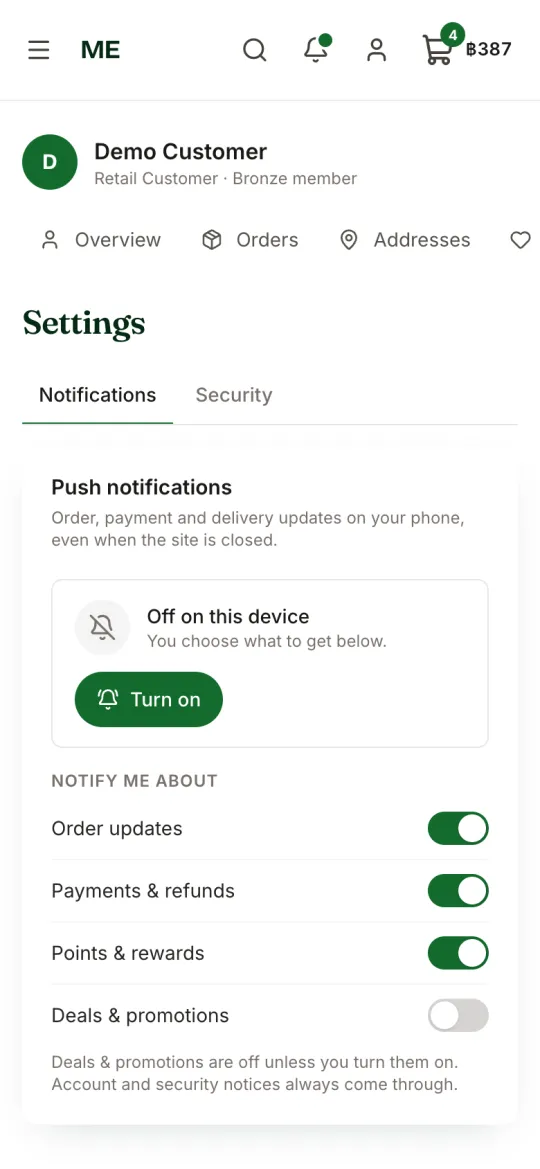
- 1Log in and open Account → Settings → Notifications.
- 2Tap “Turn on” and choose Allow when your phone asks.
- 3Pick what you want to hear about: orders, payments, points, deals.
- 4Tap “Send test” to check it works.
On iPhone, add ME to your Home Screen first and open it from there (iOS 16.4 or newer).
Place an order
Find what you need, choose options and check out in a minute.
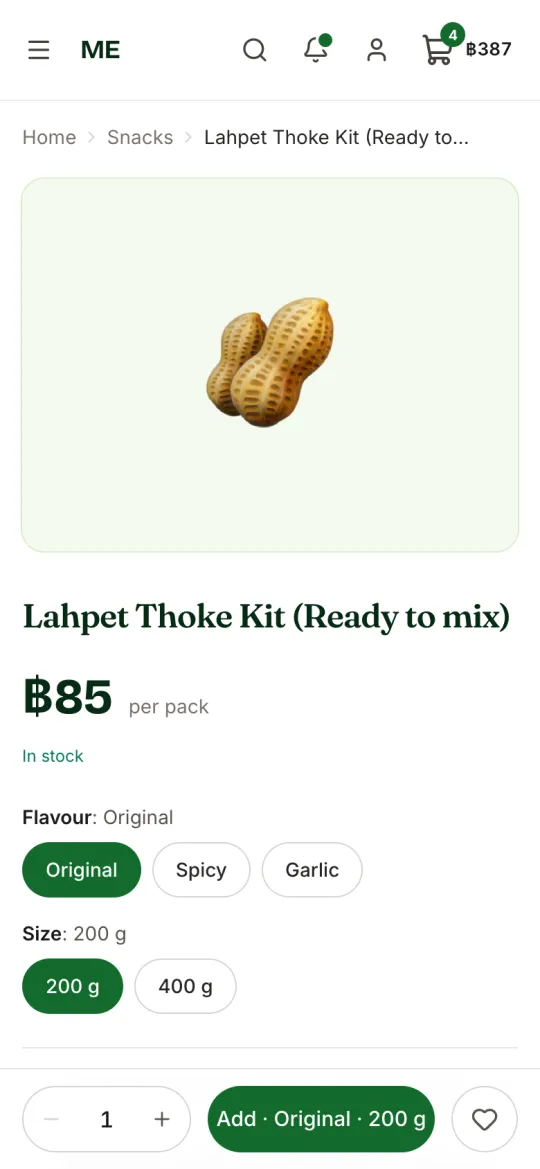
- 1Browse categories or tap the search icon to find a product.
- 2Choose a flavour or size if the product has options, then tap “Add to cart”.
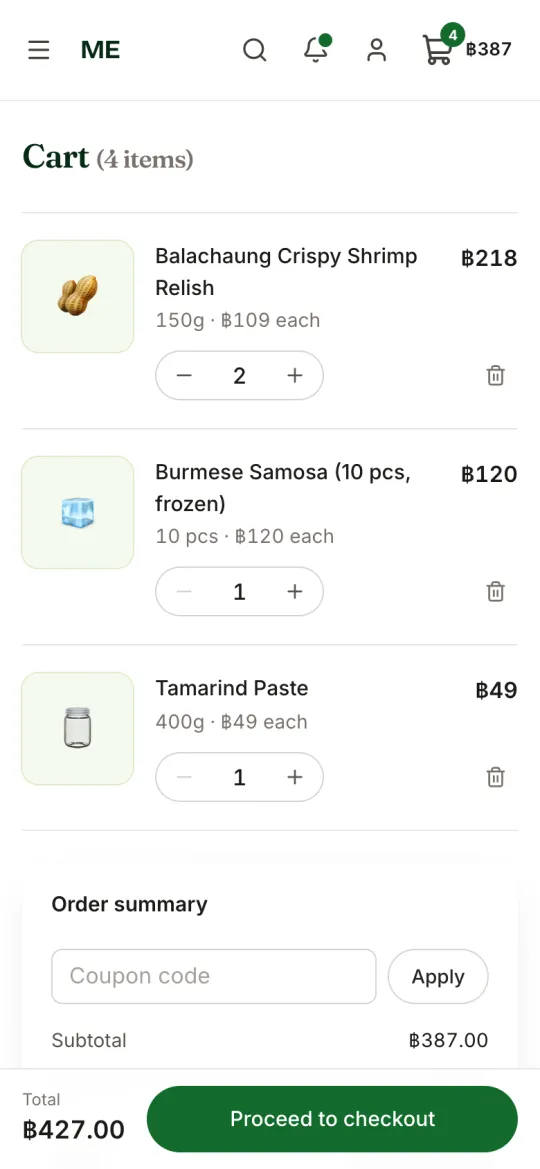
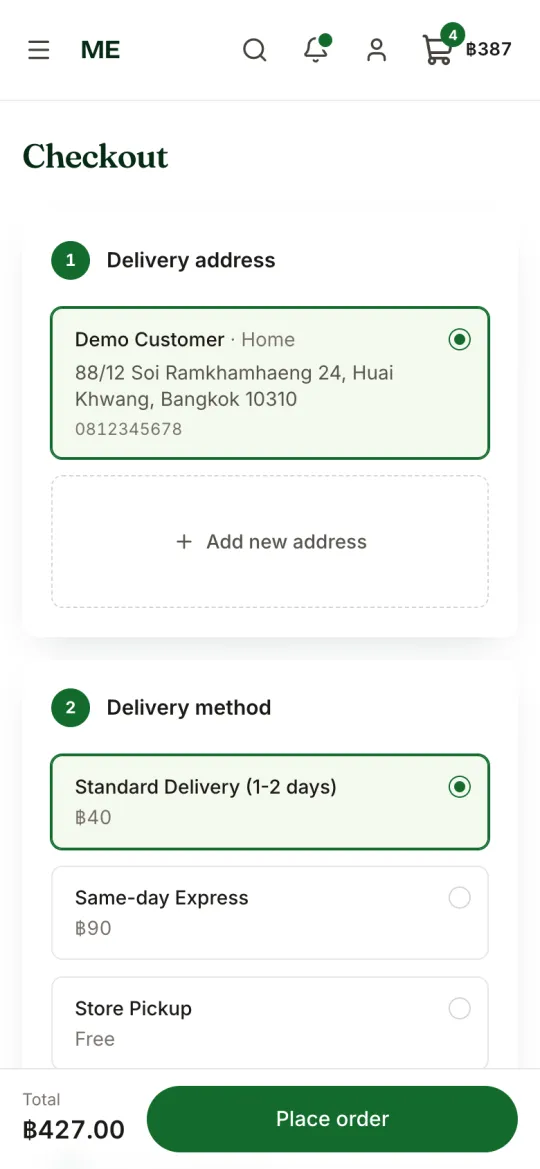
- 3Open your cart, check the items and tap “Checkout”.
- 4Choose your address, delivery option and payment method, then tap “Place order”.
Pay & upload your slip
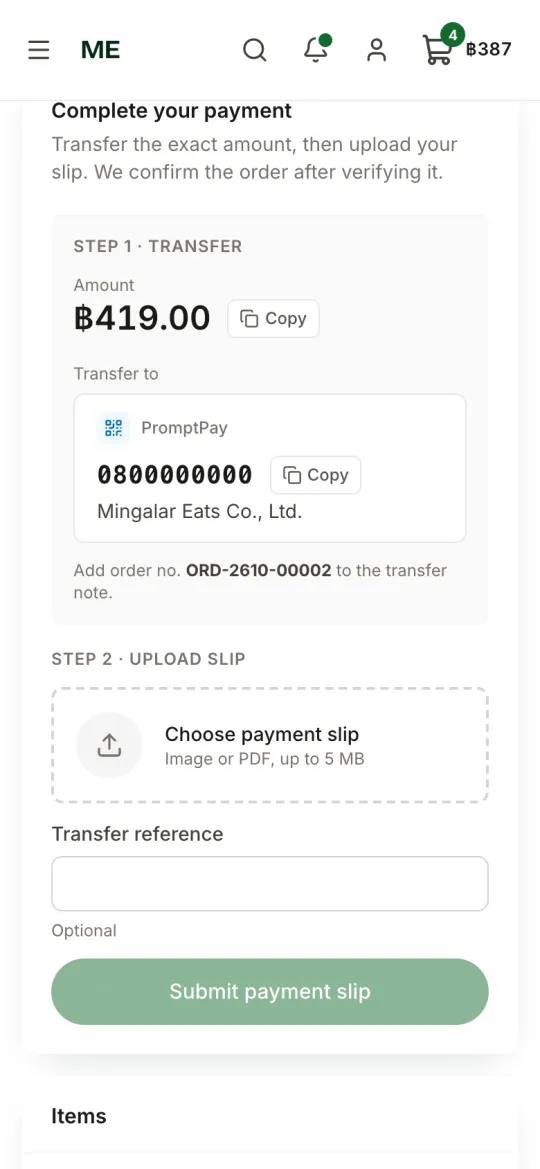
Every payment is checked by a person, so please upload a clear slip.
- 1On your order page, scan the PromptPay QR or copy the bank account number.
- 2Pay the exact total shown in your banking app.
- 3Save or screenshot the payment slip.
- 4Back on the order page, tap “Upload slip” and choose the picture.
- 5We verify it and you get a notification when your order is confirmed.
Track your order & refunds
See where your order is and get help if something isn’t right.
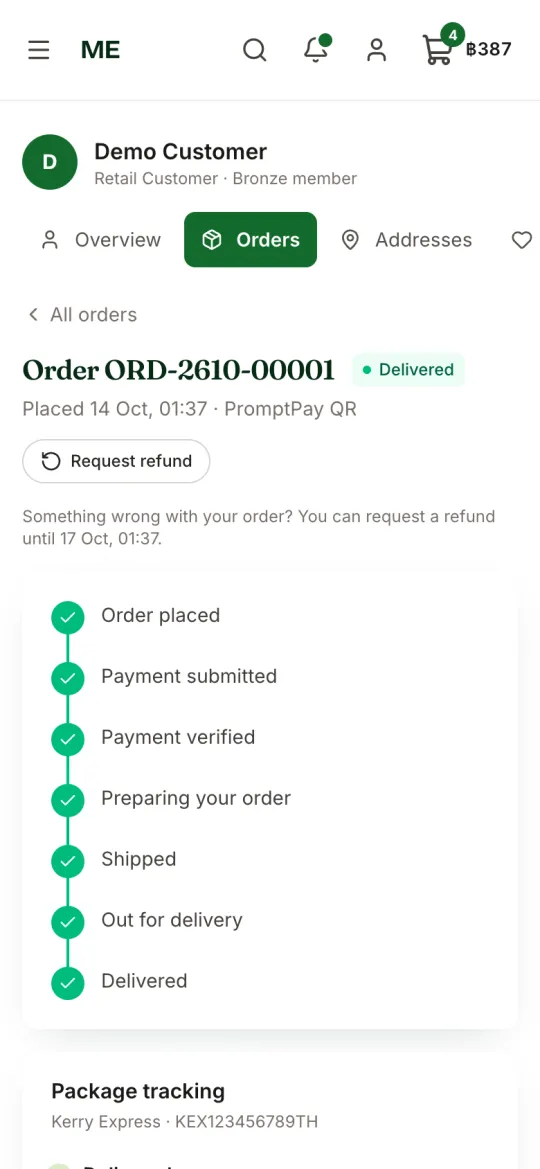
- 1Open Account → My orders and tap an order to see its progress.
- 2You can cancel an order until its payment is confirmed.
- 3Problem with a paid order? Tap “Request refund” — any time before delivery, or within 3 days after it arrives.
Points & rewards
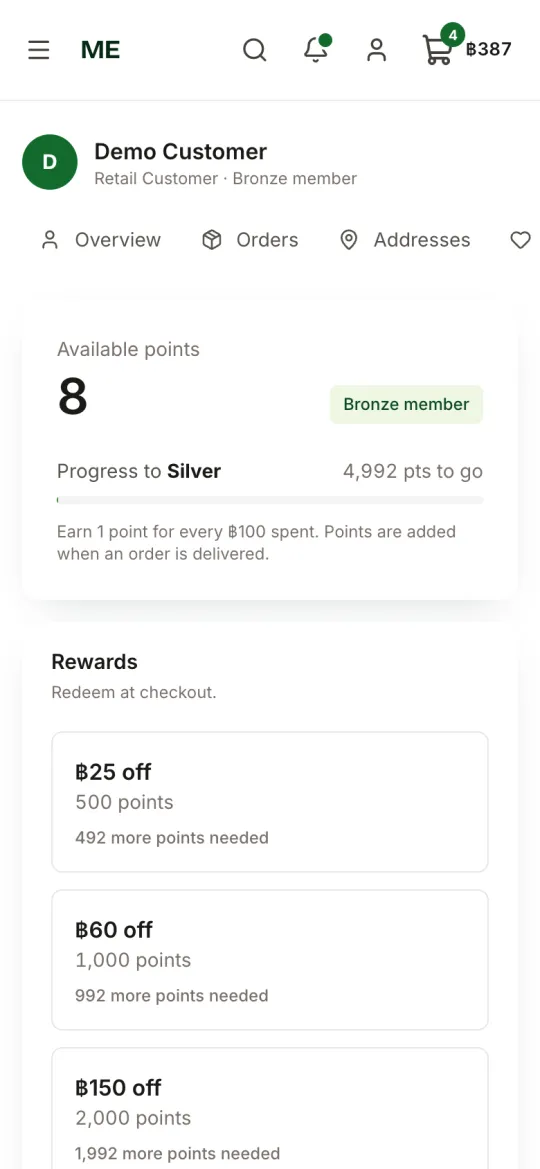
Every delivered order earns points.
- 1Earn 1 point for every ฿100 you spend.
- 2See your balance and rewards in Account → Points & rewards.
- 3Use a reward at checkout when you have enough points.